Build to Fight Zombies Tools Hub
Controls and helper pages that support tank building, prep windows, and wave survival.
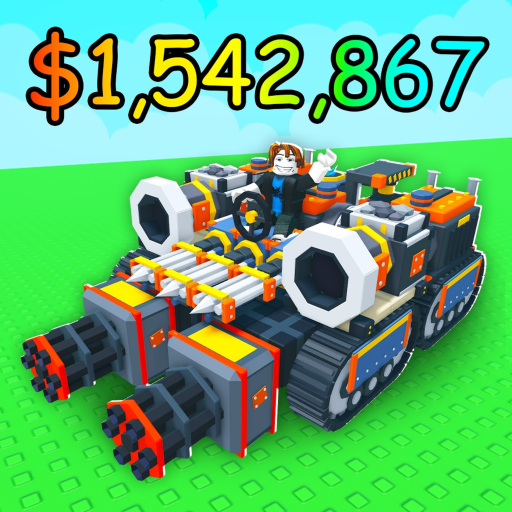
The Tools Hub collects practical reference pages for Build to Fight Zombies—the Roblox tank-building wave game by Khorovats. Guides teach strategy; tools answer “which input / which panel / which habit” questions while you are mid-session. Start with Controls if you need movement, camera, and build-panel interaction notes for PC or mobile.
This experience mixes simulation and sandbox play: assemble turrets and armor on a tank, fight zombie waves, then use preparation windows to repair and upgrade. Servers support up to six players. Tools pages stay intentionally concise next to the deeper Guides Hub, but they still explain why each reference matters in a real run.
What belongs under Tools
- Input and UI references that change less often than wave meta
- Checklists and helpers you might open on a second monitor
- Clarifications when Roblox platform controls differ by device
Strategy walkthroughs stay in Guides. Codes stay in Codes. Patch history stays in Updates. Links to official destinations live on the Links Hub.
Featured tool page
Controls
Covers typical Roblox movement and camera habits plus how to think about the build panel during prep windows. Exact keybinds can vary by device, Roblox settings, and game updates—so the page emphasizes on-screen prompts and phase awareness (prep versus combat) instead of pretending one chart is eternal. Use it when a friend asks “how do I open build?” or when mobile players need gesture equivalents.
How to use tools with guides
A solid session flow looks like this:
- Skim Getting Started once.
- Keep Controls handy until the build panel feels automatic.
- Apply How to Build a Tank during prep.
- Adapt with Survive Waves and Repair and Prep.
- Add Co-op Guide when the lobby grows past solo.
Tools do not replace those guides. They remove friction so you can execute them faster.
Device and accessibility notes
Roblox runs on PC, mobile, and other supported devices. Touch UIs expose build actions as buttons; keyboards expose many of the same actions as hotkeys. Always trust the prompt currently on your screen if a wiki table disagrees. Sensitivity, shift-lock, and mobile joystick settings in Roblox can change how quickly you orbit the tank during prep—adjust those in the Roblox menu if camera work feels sluggish.
If you play with a controller on a supported setup, map attention to the on-screen labels the game shows for build and confirm actions rather than assuming console defaults from another title.
What tools will not do
This hub will not list unverified exploits or scripts. As of late November 2026, no place-specific scripts for Build to Fight Zombies are verified on major script indexes, and this wiki focuses on legitimate play. Promo code status belongs on the Codes Hub—no reliable working codes were confirmed at the time of writing.
We also avoid inventing YouTube embeds. When a verified tutorial video exists for this exact game, guides may reference it; tools pages stay text-first.
Keeping references honest after patches
Khorovats can change UI labels, part lists, or prep timing. When something on a tools page disagrees with your live client, trust the client and check Updates for patch context. Then the tools page should be revised to match reality—not the other way around.
Quick links
- Controls — PC and mobile interaction reference
- Guides Hub — full strategy index
- Repair and Prep — prep checklist companion
- How to Build a Tank — placement deep dive
- Codes — promo code status
- Updates — changelog notes
Open a tool when you need a fast answer; open a guide when you need a plan for the next ten waves. Together they keep the tank alive longer.
Frequently Asked Questions
Quick answers for tank builds, waves, and codes.
What is the Tools Hub for?
Short reference pages like controls and helpers that support play without replacing full strategy guides.
Where are keybinds documented?
See the Controls page. Treat on-screen prompts as authoritative when they differ from any chart.
Are scripts or trainers listed here?
No. This wiki documents legitimate build and survival play only.
Should I read Tools or Guides first?
New players should skim Getting Started, use Controls while learning the UI, then dive into the other guides.